
What’s a lockscreen
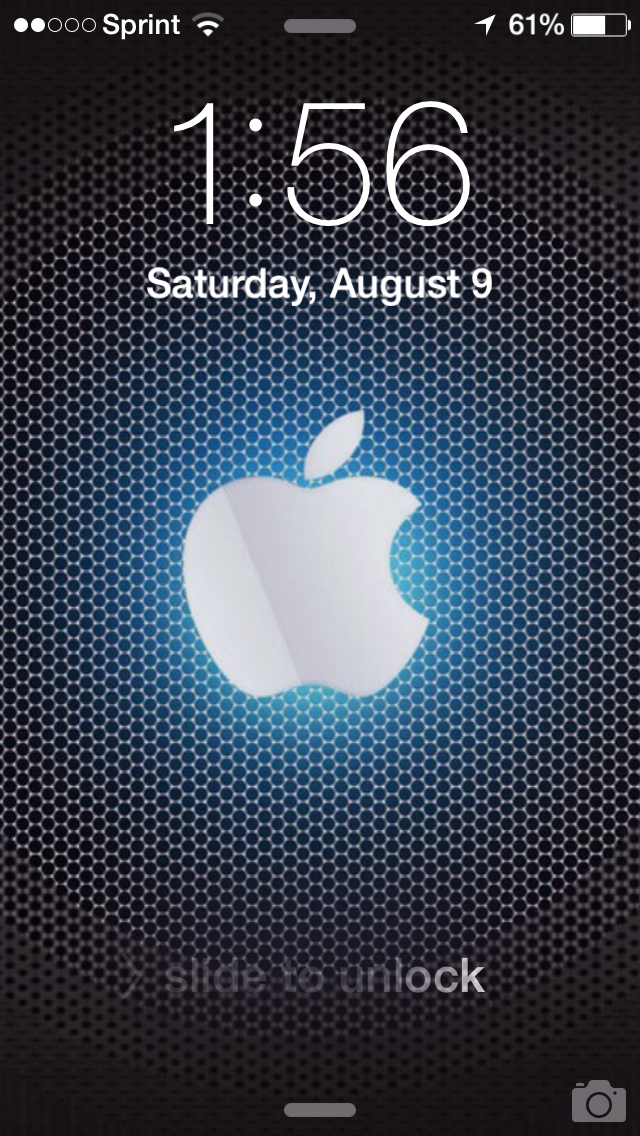
Ahh yes, the lockscreen of the Idevice. It is what will greet you when you first wake your device. This can easily be done by hitting the power button on the top of the device, or pressing the home button. Here, you will be presented with some basic information, such as: Your reception (upper left hand side), battery remaining (upper right hand side), current time and the date. Now, you have your choice of doing four things here, believe it or not.
1. Pull down where you see that gray bar at the top. This will present you with some basic information,which includes: Weather, any events in your calendar, stock market information and any events for tomorrow. This area is better known as your Notification center. There are three tabs here: Today,All, and Missed. 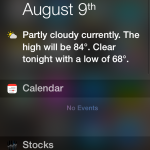
2. Swiping up from the bottom where the other grey bar is, will realize your Control Center. 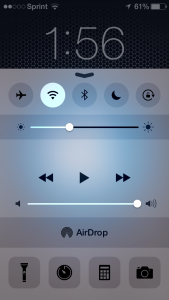 These little buttons on the top, help you turn on or off, any of the features presented to you. They included Airplane Mode,Wifi, Bluetooth, Do Not Disturb (more on that in another post) and Portrait Orientation Lock. This pretty much keeps every single app in Portrait, regardless if you turn your phone sideways. Many times I’ve been texting with Melissa and the screen flipped all around. Below those buttons is a slider that controls the brightness of your display. Right is brighter and left is darker. In the middle we have the Media Controls, which are pretty straightforward. Under that is another slider for your volume. Right is louder and left is quieter. Next we have Air Drop, which is a way to share content wirelessly with other iOS users. Don’t worry, I will make a post for that 😀
And finally, you have some apps that can be quickly open. These include your Flashlight, Clock (which has a Timer, Stopwatch, Alarm and World clocks.) , Calculator and your Camera. Please be advised here folks, that you can launch apps if you have your passcode on. Here’s how to set a Passcode
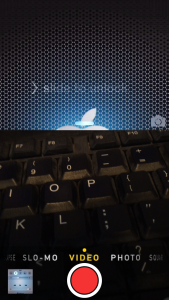
3. You see that camera icon on the bottom right? Well, put your finger on top of it and then slide up! Bam! You are now within your camera app. Now I have noticed that if you have your passcode ON, you will not see your last picture taken, in the little box, on the bottom left. I actually put my passcode on and tried clicking on it, and was presented with a message about having no pictures. Do not panic!! This is Apple’s way to keep your Idevice secure, in case somebody else picks it up. None of your friends can see that hilarious picture you took of them, puking into the flower pot,after a night of drinking, so relax 😛 But this method of sliding up to access the camera is great for the aspiring photographers out there, or if something where to catch y\our eye. This way, you don’t have to rush and put in your code, and end up missing that awesome shot. That would suck!
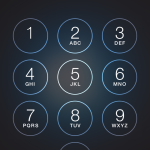
4. Finally! We have the most simple thing in the world to do next. Slide to open. Just take your finger and place it on the left hand side of the screen, (in the middle) and drag to the right. That’s it! You are in your device. Unless you have your passcode on, in which case, you tap in whatever numbers you set, and then you are in!
That’s all there is to the lockscreen of your shiny Idevice! We hope that you found it useful :]
Have a great day!