Springboard
Where can I find this “Springboard” you may ask. Well, it’s presented to you as soon as you unlock your device. It’s basically your homescreen. There’s a lot that goes on here! Your Springboard keeps all your apps on it, so you can easily access them by just clicking on it. The more applications that you have on your device, the more homescreens you have. You can access more of your applications by swiping to the right until you can’t go any further. Trust me, you will know when you can’t go anymore :]
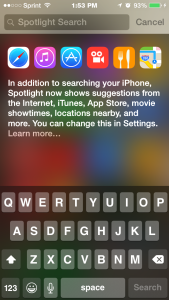
You can certainly still access the Control Center and Notification center on any of your homescreens. Swipe down from the top, or swipe up from the bottom, and you are golden! This will help if you have a notification for say, an email, but you just can’t find that pesky icon. On the Springboard, you will see an indication if you have any alerts for mail, text or to update any apps. These are called “Badges” in the iOS world. You can access what is called “Spotlight search” , by swiping down on the Springboard.
Then you can uninstall applications very easily!
Here are the quick steps on how to uninstall an application.
- Press and hold on the app of your choice.You’ll notice that the icons start wiggling all around with an “X” on top of the icon.
- Click on that X.
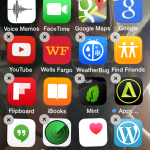
- A popup will display asking you to confirm your selection.
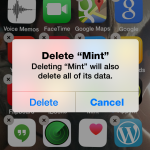
- Profit!
You can also move your applications around while you are in this wiggle mode. If you want to make a folder, to really organize, just overlay icons and it will automatically create a folder for you. You have the opportunity to name your folders also. Just go into the folder you made, press and hold an icon for wiggle mode, then you’ll see the top bar become grey with an X. Just click on that, and name away! It’s really that simple, folks.
Not much to this Springboard business!